Category: How To


F18 Carrier Landing HD Game Play

F18 Carrier Landing HD Game Play Video on Samsung Galaxy SII, A speed taxiing, take off and Flings in the Air, Sudden Knots decrement and Landing… Just to show the game play and Enjoyments you can have with the Game; if in your Android Phone.


This Post is Just about Windows 8 Release Preview Edition Sneak Peek. Insider Views and Menus, typical installation screen changes, Accounts activities, Locking and logging off screens, gadget bars and Start menu of new Windows 8 Edition.

Look at the Video and have a great Sneak Peek of Windows 8 Release Preview Edition


I have recently faced this Script error while installing VMware Workstation on my Laptop. This is quite annoying that we can’t past this screen even accepting the error with “YES” or “NO”.

VMware Communities recommended to  install it in Silent mode background install, Hopefully that worked for some people, who are lucky maybe if they haven’t saw this awesome method whilst their time…

This method involves, just changing your temp file directory temporarily. So a minor changes are needed to install VMware Workstation Successfully on your Machine, bypassing the script errors and any issues.

First off, Go to System properties by right-clicking the computer and selecting the properties option, and then following to click the Advanced System Settings in the Left hand side 


Once You are at this Environment Variables Screen, All you have to do is to Edit the TEMP and TMP FILES Path to C:\Tmp path. Once you do that with the system and user variables, the installation will proceed smoothly. Remember to copy the paths of the original “TEMP” and “TMP” paths to “Notepad” to revert back to original TEMP and TMP paths once Workstation installation has been successful. Do for the both System and User environment variables.

When changed to C:\Tmp file path, the extracting files of Vmware workstation would be done to Tmp file in C, where the script errors that are occuring can be fully resolved with this method. The temp path has issues when reading the index.htm file in extracted Vmware folder. You can name your TEMP and TMP files as you wish, but remember to revert back to original PATHS for TEMP and TMP in environment variables, once your installation is made.

Hope this helps other panicked, irritated patrons.

Chaladi


Hi,

In This post, I came forward with a solution for WI-FI connectivity issues on Samsung galaxy SII, where the WI-FI switching is taking too long time to turn on.

I have faced the same problem and been to number of forums; XDA First off and blogs and tried several, though it didn’t worked for me, the motivation lead me to find an alternative way, which will surely work.

First Try, Going to Flight Mode and then Coming Back To Normal Mode, this works major times, If not happy with this process, go ahead with this process… flashing kernel. because the problem is with the drivers that are not properly coordinating with the System Boards. So let’s workaround that way

I have reflashed my Kernel with New latest Siyah Kernel 3.5.2. I am writing this in context of galaxy SII – I9100 Users only and Must be rooted your phone. If you don’t know rooting, you probably can’t try this to fix your issue.

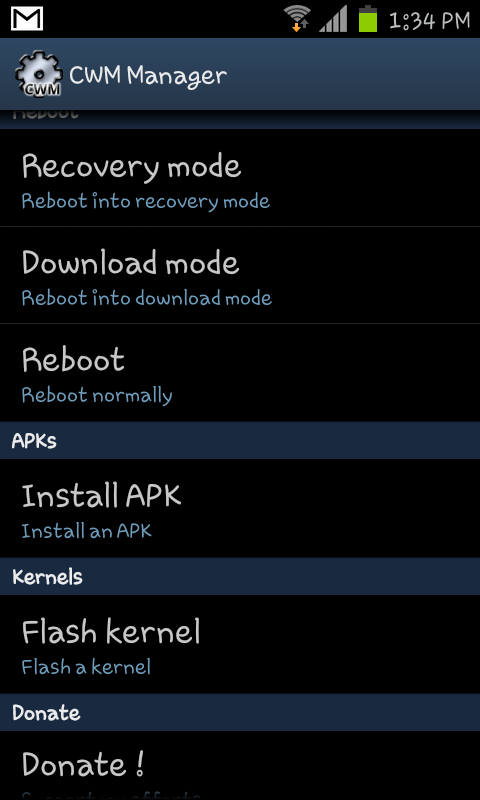
Try flashing your kernel from your CWM manager within your phone or from ODIN tool Either from computer or from your phone having ODIN installed. I recommend CWM, as the flashing process is smooth and goes good. Download the below mentioned files and place the extracted zImage file in your phone and flash em…

Download the Below Files, Any One, as per your procedure requirements


DOWNLOAD TAR (for Odin)

DOWNLOAD ZIP (for CWM Recovery) – This is for CWM process.

Download this and extract the files from ZIP folder and copy the zImage file in your sdcard location and open the CWM and flash the Kernel, Not the ROM. Be careful, to flash the kernel with this zImage only, If other images are there in the same directory move them, or move this file to new folder, where you can easily recognize the image file location.
CWM MANAGER

From this, you can see, the flash kernel option is available. However since, this is CF-ROOTED and CWM is managed through CF-KERNEL, the flashing of ROM option has been disabled, once the siyah kernel has been flashed for kernel. I respect the Chain Fire however, until new stable WI-FI working kernel is released, I am sticking with Siyah Kernel, as I can use the Dual ROMs now…

Okay. So concisely, Flash your kernel with this latest stable Working Siyah Kernel, You can be on Whatever ROM version, Flash this and See the issues fixed.

For queries or if clarifications is needed with this writing, revert back to me, I am happy to furnish the details.

If not fixed, or facing problems, mention the problems here, and I will be working at my best to fix them for you.


This post will show you how to increase your default pagefile in windows to desired maximum. As this increment will help your system have more memory resources to outperform in some cases.


I have made a Video that will Show you precisely the instructions on how to increase the page file.


Increasing Pagefile in Windows


Please Note: This is applicable for Rooted Android Devices Only. Rooting your android device allows you to utilise your android device hidden features and full capabilities. Note that; rooting your device will void warranty and is not recommended, if you are facing problems with your Device performance or its system, where likely your device needs to be sent to supplier for warranty covered service needs.

This is intended for educational purpose only. Having your Device rooted and installed with the latest version of Titanium Backup Pro, you can perform application specific backups and restores. The main benefits using Titanium backup is:

  Titanium Backup Icon

      • You can perform application specific backups, for about 50 backups history, allowing you to restore any of the 50 history backups.
      • You control your applications fully and is a way to protect your application data integrity. For example, your Temple run coin collection is up there at 20000 and all of sudden, your friends, spent them all for unnecessary purchases and stupid avatars, you are very unlikely to hold your scolding; in such situations Titanium to the rescue.
      • Another very good reason is, you are backing up your application and the data, so you don’t have to install this application from market or from other links to have this application in your new, device. The Titanium allows you to install the application along with the data restored.
      • And there’s lot to say about this App, but confining with the most interesting points, the screenshots allows you to have a good look at the application usage and insider views

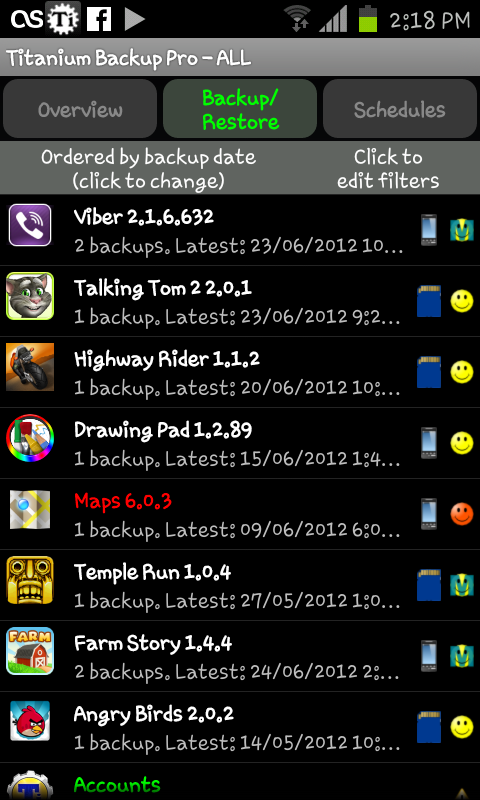
Once you are in the Titanium Application, all you have to do is to navigate to the Viber; in this case or any application you would lie to preserver and back it up! If the settings are not touched; the preferences I mean, you are backing up the application and data too, so you can just trust this application to save your viber messages and in future, if you wanted to install the viber on another device and wanted to see the messages in there, Titanium to the rescue.

Here are some screenshots, telling you the insider views:

 ImageImage

 So Back up your private, precious messages and transfer them to your another preferred device, or just preserve for future use

Once, you backup your application, the history is shown for the app, once you navigate to the interested application, you can restore to that particular date, from the backups taken shown with the date took that.

By default the Titanium Backup folder is created within the device for Samsung Galaxy Devices, and you have to ensure that folder location is secure and is accessible for you to back it up to the computer to transfer the same to another device for restoring the data. The most common place is within the Device memory, identified with the Titanium Backup Folder as named, and all the application and data backups are stored there. You have to copy that folder, or if you need specific application, you have ensure you transfer all the relying files for that application and transfer them to the new device, titanium backup folder; in order to show it up in the new device Titanium Backup application. Once you have the application identified in the Titanium, one click does it all, restoring your messages to the new device.

Important relying files within Titanium Backup Folder: Ensure you backup all these files, excluding the date of the data backups, can be easily identified with the date modified property.


In this Post, i am gonna show you how to install CentOS in VMware workstation.

The below Video tutorials will take you to the edge of the process and explain you the complete installation process and services, things that counts when the boot process of the CentOS box initiates.

In the midst of the Video tutorials, the cursor has been intentionally dragged, highlighted some words, to show, say you the important things at the concerned stage. The Settings section in the midst of the installation process will come up with the setting of IP address, HOSTNAME for the CentOS, however the settings were not saved nor used later, the setup has been just show you that the setup of Static IP and HOSTNAME can also be achieved whilst installation. The later setup of HOSTNAME can be acquired from this LINK

For Linux it is recommended to disable the Firewalls and SE Linux (Security Enhanced), Ços the services interaction and communications of concerned protocols will fail by blocking so. However it can also be activated (firewall), but the manual port setup, services configurations are to be done after logging into CentOS box.

Part 1:

Part 2:

The setup of username and password is recommended and meant to be strong enough to secure your CentOS BOX.

If you have any doubts or queries regarding the setup or the process used for the setup, please do not hesitate to message me @twitter.com/chaladhi   or comment here. As of your convenience. !!!  :~)

Regards,

Chaladi